Field Mapping
Field Mapping tells MeCard which approved Microsoft employee attribute may update which exact field on a digital business card.
1. What is Field Mapping?
MeCard has three different places where employee information can appear. The similar-looking names and contact fields are not interchangeable.
User Account
Internal employee account details, such as first and last name set at initial creation.
Card Profile
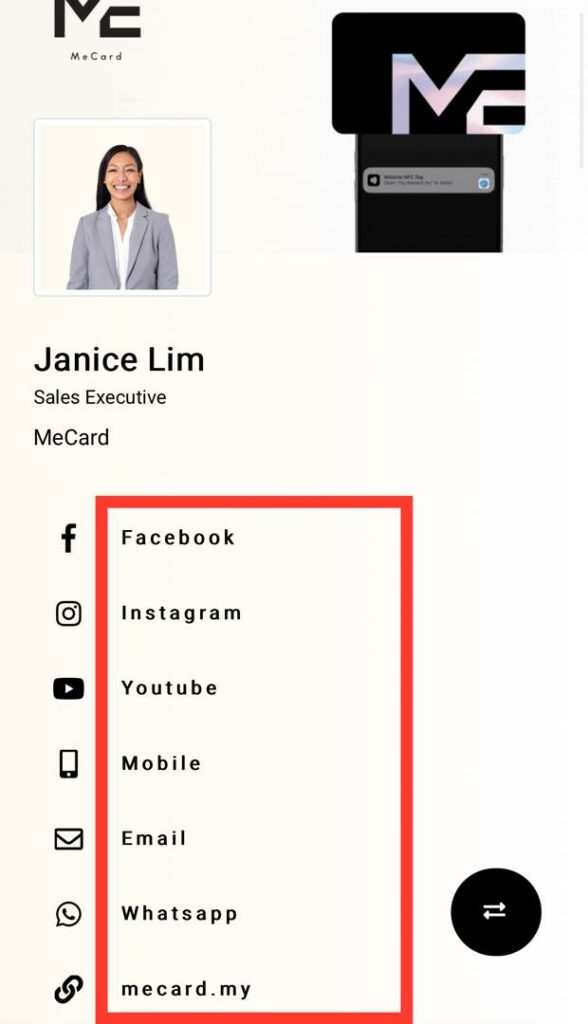
The public card’s visible Name, Last Name, Job Title and Company.
Contact Details
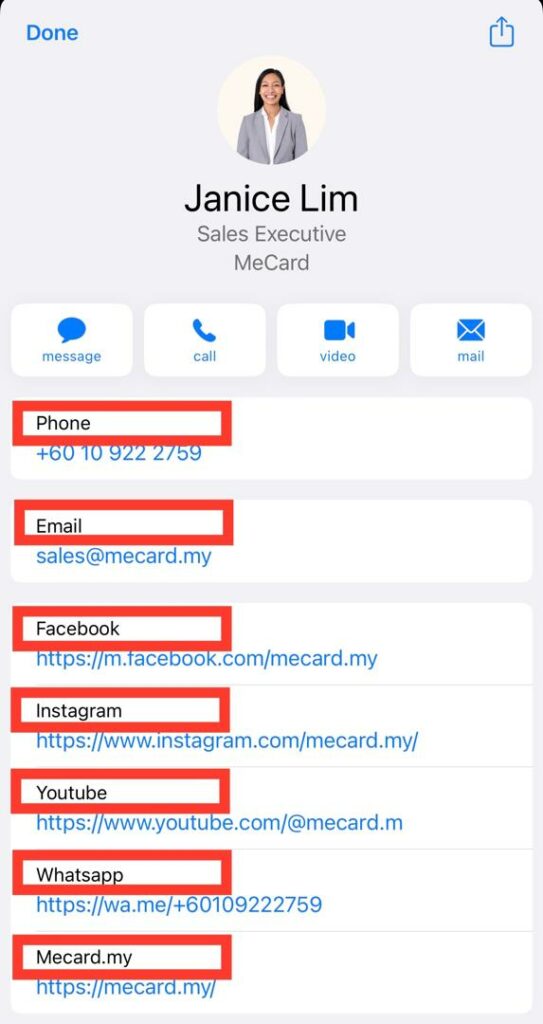
Separate phone, email and address entries stored on the chosen card.
2. Find the real source attributes in Microsoft
Microsoft IT confirms which standard properties or approved extensions are available. Common sources include displayName, surname, jobTitle, companyName, mail and mobilePhone.

3. Choose the correct MeCard destination
The approved standard mapping for visible digital-card fields is:
| Microsoft attribute | MeCard destination |
|---|---|
| displayName | Card Profile → Name |
| surname | Card Profile → Last Name |
| jobTitle | Card Profile → Job Title |
| companyName | Card Profile → Company |
| Contact Details → Work Email | |
| mobilePhone | Contact Details → Mobile Number |
| businessPhones | Contact Details → Office Telephone (select approved number) |
| Approved address components | Contact Details → Office Address |
At initial employee registration only: Microsoft’s givenName and surname provide the MeCard User Account First Name and Last Name. Later card-field sync does not automatically rewrite those User Account names.
displayName may already include the surname. Preview Name and Last Name together to avoid repeating the surname on the card.4. Set up company defaults or exact mappings
Open Company-wide default fields
Sign in as Company Admin. Go to Microsoft → Azure Employees → Company-wide default fields. Choose the approved common fields once.
Use role-specific sources only when needed
If Malaysia and China use different actual Microsoft properties, select an IT-approved source for that market or role. Single-profile employees can usually use the company defaults.
Use Advanced Azure Mapping for exact destinations
In Microsoft → Employee Sync, choose the linked employee, role and exact card, followed by Destination type, Destination field, Field owner, and the real Microsoft property identifier. Contact mappings must identify the exact contact entry on that card.

Field owner: Select Microsoft for fields approved to sync from Microsoft. Keep fields MeCard-managed when users should edit them manually. Transferring ownership requires approval.
5. Preview before publishing
Verify the connection and generate a preview
Open Microsoft → Employee Sync. Select Verify connection, then Generate preview. Check each Before → After change and the exact destination card.
Approve and synchronize when authorized
Approve the reviewed mapping before applying it. Sync now uses a valid approved configuration; routine automatic synchronization also requires separate activation. Review translated cards afterward.

Quick answers
Must every employee use Advanced Azure Mapping? No. Company-wide defaults are intended for common single-profile cases.
Can the same employee have different Malaysia and China fields? Yes, when IT has approved real market/role-specific Microsoft sources and the correct destination card is selected.
Will saving a new mapping immediately update customer cards? No. A new or changed mapping needs a fresh preview and approval before publication.